

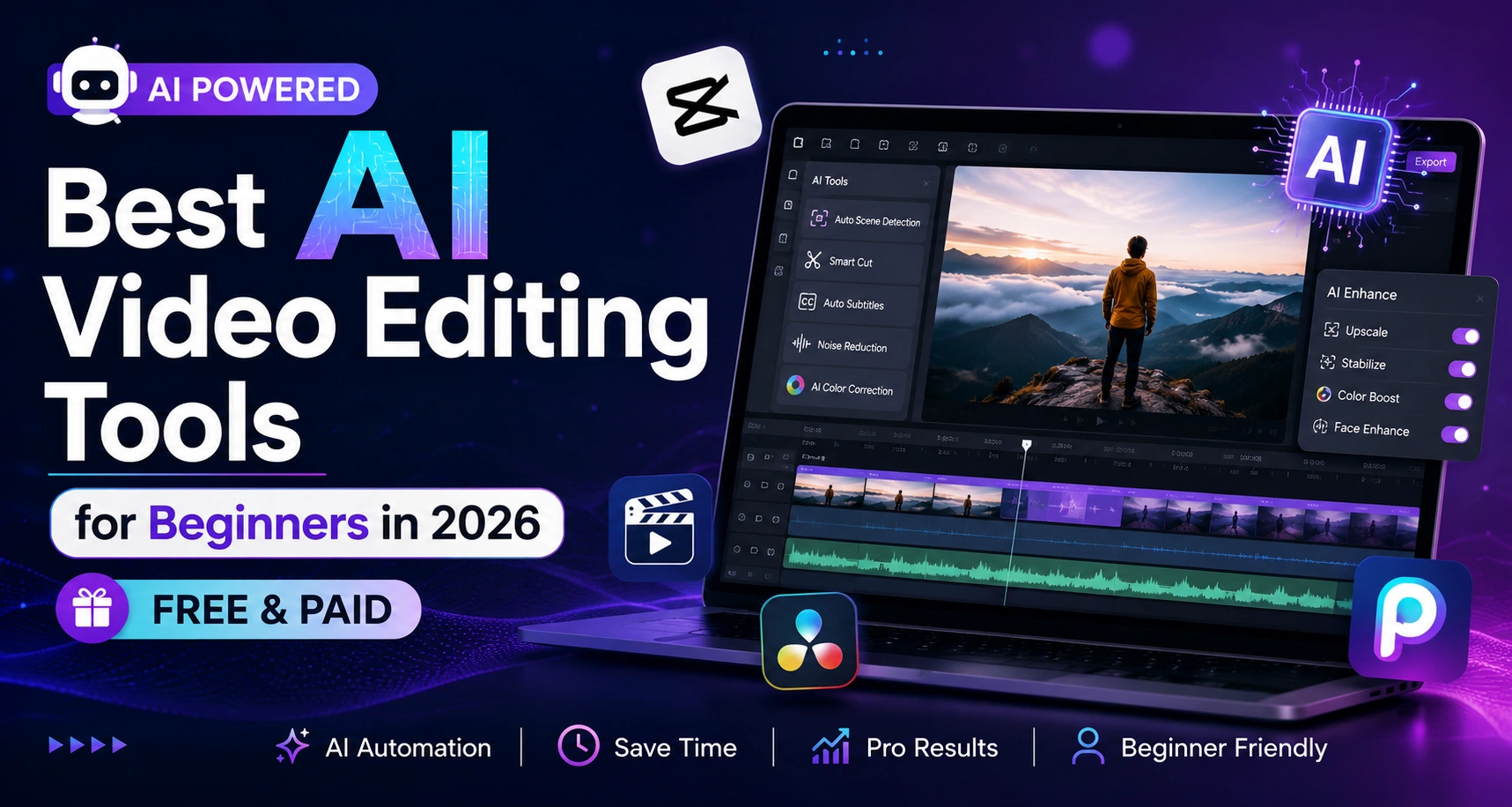
Editing used to be the bottleneck between “I filmed something” and “I posted something.” In 2026, that bottleneck has mostly disappeared. AI video editors now handle the boring 80% of the job automatically — cutting silences, generating captions, and reframing footage for Shorts and Reels — so a total beginner can go from raw clip to a finished, platform-ready video in minutes instead of hours.
Quick answer: For most beginners, CapCut is the best free AI video editor with no watermark, Descript is the best pick if you want to edit by editing text, and Veed.io is the best option if you’d rather not download anything and just edit in the browser. Below is a full breakdown of each, plus how to pick between them.
Why AI Video Editing Tools Matter for Beginners in 2026
Video is no longer optional content — it’s the default. Video-first content strategy continues to grow heading into 2026, and creators without editing experience are expected to publish at the same pace as trained editors. AI-assisted editing closes that gap because it automates the three things that used to require the most skill:
- Auto-captions — no manual typing or timing text to audio
- Scene and silence detection — the tool finds and removes dead air for you
- Format-specific reframing — one horizontal video becomes a vertical Short or Reel automatically
None of this replaces creative judgment. AI gets a rough cut roughly 70–80% of the way there; a beginner still needs to review pacing, trim awkward cuts, and make sure captions are accurate before publishing — especially for anything going to YouTube, where a sloppy final pass is obvious to viewers.
Best AI Video Editing Tools for Beginners 2026: Comparison Table
| Tool | Best For | Free Plan | Watermark on Free Plan | Standout AI Feature |
|---|---|---|---|---|
| CapCut | Overall beginner pick, social clips | Yes (generous) | No | Auto-reframe for Shorts/Reels, style transfer |
| Descript | Talking-head & podcast-style videos | Limited | Yes | Edit video by editing the transcript |
| Veed.io | Browser-only editing, no install | Limited | Yes | Auto-subtitles, one-click background removal |
| OpusClip | Turning long videos into Shorts | Limited | Yes (higher tiers remove it) | Finds “viral moments” in long footage automatically |
| Canva AI | Templated social media posts | Yes | No (on most templates) | Drag-and-drop AI video templates |
| Captions | Talking-head retention editing | Limited | Yes | Animated word-by-word captions |
Pricing and feature tiers change frequently — verify current plans directly on each tool’s pricing page before publishing content around them.
1. CapCut — Best Free AI Video Editor With No Watermark
CapCut, built by TikTok’s parent company ByteDance, is the tool most reviewers point beginners toward first, and for good reason: the free tier is not a stripped-down demo. It includes 1080p exports without a watermark, auto-captions with reported accuracy in the high-90s for clear English audio, and an auto-reframe feature that intelligently converts horizontal footage into vertical format for Shorts, Reels, and TikTok.
Good for: creators who want a mobile-first workflow and don’t want to pay anything to start. Watch out for: desktop features feel secondary to the mobile app, and very long-form editing (30+ minutes) isn’t its strength.
2. Descript — Best for Editing by Text
Descript flips the usual editing model: instead of scrubbing a timeline, you edit a transcript, and the video updates to match. Delete a sentence from the text, and that clip disappears from the video. This is especially useful for talking-head content, podcasts repurposed into video, and long-form YouTube where removing filler words (“umm,” “like,” long pauses) by hand would take forever.
Good for: solo creators and podcasters who talk on camera and want to cut editing time dramatically. Watch out for: the free tier is more limited than CapCut’s, and there’s a small learning curve before the transcript-editing workflow feels natural.
3. Veed.io — Best Browser-Based Editor
Veed.io requires no download at all, which matters if you’re editing from a shared or low-spec computer. It handles auto-subtitles, background removal, and “smart cut” silence removal directly in the browser, and its interface is generally rated as one of the more approachable for first-time editors.
Good for: beginners who want to test AI editing without installing software, or teams collaborating remotely. Watch out for: the free plan carries a watermark and lower resolution exports.
4. OpusClip — Best for Turning Long Videos Into YouTube Shorts
If your workflow starts with a long recording — a podcast, webinar, or vlog — and you need short, platform-ready clips out the other end, OpusClip is built specifically for that. Its AI scans long footage and surfaces the segments most likely to perform as standalone Shorts or Reels, which is a meaningfully different job than general-purpose editing.
Good for: repurposing long-form content (podcasts, interviews, livestreams) into multiple short clips quickly. Watch out for: editing depth is more limited than CapCut or Descript — it’s optimized for clipping speed, not fine control.
5. Canva AI — Best for Quick, Templated Social Videos
Most people know Canva for graphics, but its AI video suite lets beginners build polished social posts using drag-and-drop templates rather than a traditional timeline. This is the fastest route from idea to finished post if brand consistency (colors, fonts, layout) matters more than custom editing.
Good for: small businesses and creators who already use Canva for graphics and want video without learning a new interface. Watch out for: less flexibility for footage-heavy or narrative-driven video compared to a dedicated editor.
How to Choose the Right Free AI Video Editor With No Watermark
Run through these four questions before picking a tool:
- What’s your source material? A script only → a generative tool works. Raw footage → an editor like CapCut or Descript. A long recording you need to cut down → OpusClip.
- Where is it going? Vertical platforms (Shorts, Reels, TikTok) need strong auto-reframe. Long-form YouTube needs strong transcript editing and silence removal.
- Does the free tier actually work for you? Not all “free” plans are equal — CapCut’s free tier exports in 1080p with no watermark, while several competitors gate that behind a paid plan.
- How much manual control do you want? Template-driven tools (Canva) are fastest but least flexible. Transcript-driven tools (Descript) offer more precision at the cost of a small learning curve.
Step-by-Step: Editing Your First Video With an AI Tool
- Brainstorm and script your hook first. Many creators now use a conversational AI assistant to draft a short script or outline before filming — this cuts down on wasted footage.
- Upload your raw footage to your chosen editor.
- Let the AI generate a first draft: auto-captions, silence removal, and reframing for your target platform.
- Review and correct captions manually. Even at 95%+ accuracy, names, brand terms, and background noise cause errors — fix these before publishing.
- Trim the AI’s rough cut — remove any cuts that feel abrupt or remove context.
- Export at the highest resolution your free plan allows, and check for a watermark before you publish.
- Post and review performance, then adjust your next script based on where viewers dropped off.
Common Mistakes Beginners Make With AI Video Editors
- Trusting the auto-captions completely. Even strong tools misread names, numbers, and accents — always do a manual pass.
- Skipping the audio clean-up. Viewers forgive average visuals far more than they forgive bad audio.
- Using every AI feature at once. Stick to two or three features that match your actual goal instead of stacking effects.
- Ignoring platform-specific formatting. A video cropped correctly for YouTube Shorts may look wrong on Instagram Reels — check aspect ratio per platform before publishing.
Frequently Asked Questions
Q.1 Is CapCut really free with no watermark?
Yes — CapCut’s free tier includes 1080p exports without a watermark, which is more generous than most competing free plans. Paid tiers add cloud storage and premium assets rather than removing restrictions.
Q.2 What’s the best AI video editor for YouTube Shorts specifically?
CapCut and OpusClip are the two most commonly recommended: CapCut for editing footage you already have, and OpusClip if you’re repurposing a longer video into multiple Shorts.
Q.3 Can beginners really replace a professional editor with AI tools?
For short-form and social content, largely yes. For complex, narrative-driven, or brand-critical video, AI tools speed up the first draft, but a final human pass on pacing and audio is still recommended.
Q.4 Do I need to pay for an AI video editor to get watermark-free exports?
Not necessarily — CapCut and Canva AI both offer watermark-free exports on their free tiers, though most other tools reserve that for paid plans.
Q.5 Which AI video editor has the most accurate auto-captions?
Independent testing generally puts CapCut and Descript in the 90–98% accuracy range for clear English audio; accuracy drops with background noise, accents, or overlapping speakers.
Conclusion
If you’re editing your first video in 2026, don’t try every tool on this list — that’s how beginners lose momentum. Start with CapCut if you want the most capable free option, or Descript if your content is mostly you talking to a camera. Get comfortable with one tool, publish consistently, and add a second tool only once you hit a real limitation of the first.
Want to go a level deeper on the AI systems powering these tools? Read our guide on [What Is an AI Agent?] to understand the technology behind auto-editing, or explore the full AI & Technology Guide for more AI tool breakdowns.