

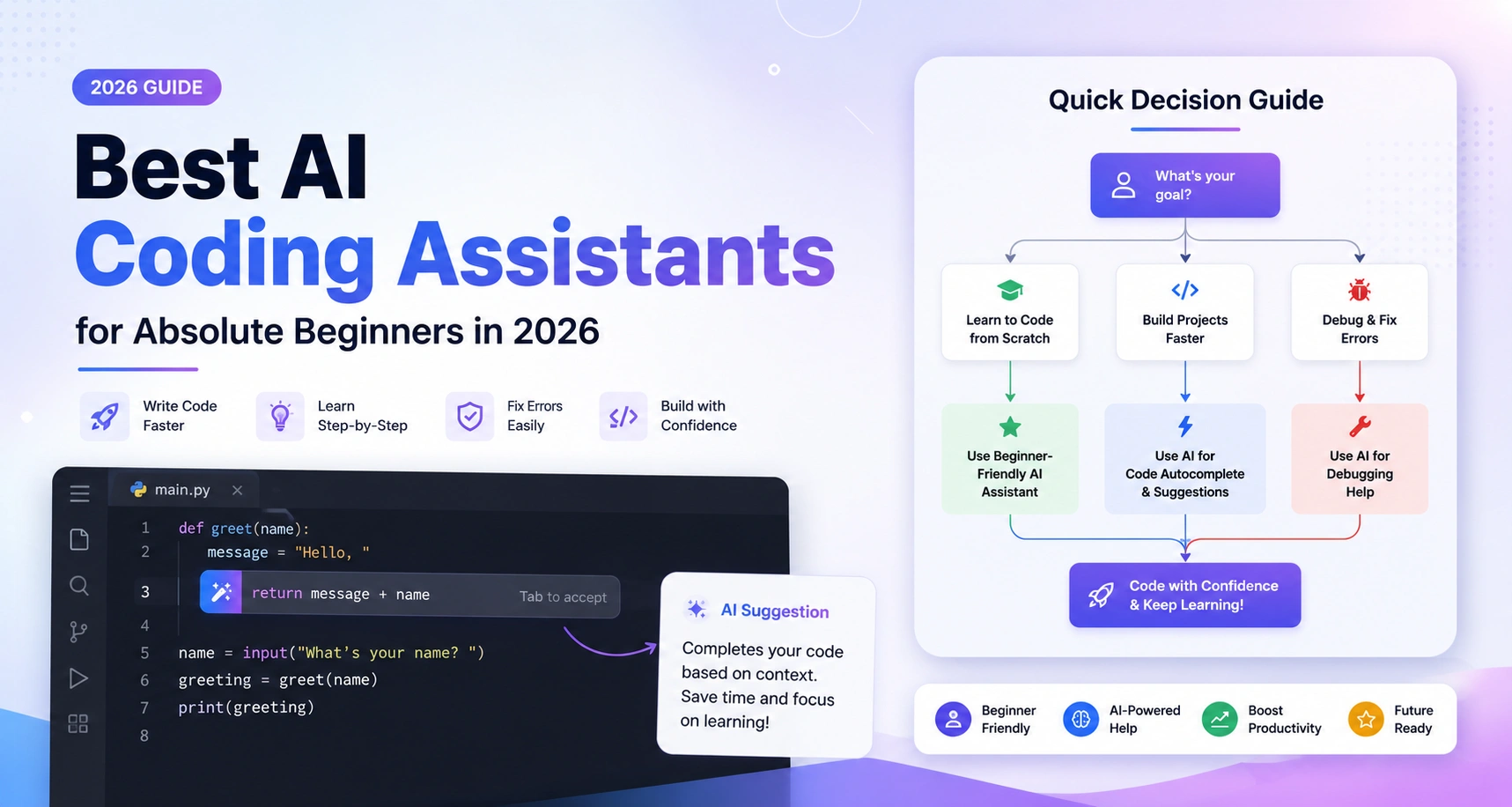
AI coding assistants have transformed how beginners learn programming in 2026. Instead of struggling alone with error messages, these tools can explain bugs, suggest fixes, and teach the reasoning behind the code in real time. For most beginners, GitHub Copilot is the best place to start thanks to its free tier and extensive learning resources, while Codeium is the strongest fully free alternative with beginner-friendly explanations. If you prefer coding in the browser without installing software, Replit’s AI tools are an excellent choice. Whichever tool you choose, use it as a learning companion—understand each suggestion instead of simply accepting it—to build strong coding skills.
Why AI Coding Assistants Actually Help Beginners
The clearest benefit isn’t that AI writes code for you — it’s that it removes the two biggest early blockers: not knowing the correct syntax, and not knowing why something broke. Instead of getting stuck and giving up, a beginner can ask “why doesn’t this work” and get an explanation in plain language, in context, immediately.
That said, there’s a real trade-off worth naming upfront: leaning on AI assistance too early, before you understand basic logic and syntax yourself, can leave gaps that show up later when you need to debug something the AI can’t fully explain, or when you’re in an interview and asked to write code without help. The tools work best as a tutor that also happens to write code, not a replacement for learning the fundamentals.
Best AI Coding Assistants for Beginners: Comparison Table
| Tool | Price | Best For | Setup Required |
|---|---|---|---|
| GitHub Copilot | Free tier (limited); Pro ~$10/month | Widest IDE support, most tutorials available | Install extension in VS Code or similar |
| Codeium | Free | Fully free option with built-in code explanations | Install extension |
| Replit (Ghostwriter/Agent) | Free tier; paid plans for more usage | Total beginners — no local setup, runs in browser | None — browser-based |
| Tabnine | Free tier; Pro ~$12/month | Privacy-conscious learners, works offline-friendly | Install extension |
| Claude Code | Usage-based / subscription | Next step after basics — terminal-based, good at explaining logic across files | Command-line install |
Pricing and free-tier limits change frequently — verify current plans directly on each tool’s site before publishing.
1. GitHub Copilot — The Easiest Starting Point
GitHub Copilot remains the most widely adopted AI coding assistant, and for beginners specifically, that popularity matters: it means far more tutorials, course integrations, and community troubleshooting exist for it than for any competitor. It works inside VS Code, JetBrains IDEs, and several others, offering inline suggestions as you type along with a chat interface for asking direct questions about your code.
Good for: beginners who want the most tutorial support and plan to eventually work in professional dev environments that commonly use Copilot. Watch out for: the free tier is limited in monthly completions; heavier use requires the paid tier.
2. Codeium — The Strongest Free Option
One of the most impressive free AI coding helpers for novices is Codeium, which features a rich plan of action without extensive limits. While most AI products are built around code generation, it’s designed with the focus on explaining code to help you learn programming concepts. It has the ability to support several programming languages and can easily be used with common code editors, so it is a great option for new programmers!
Good for: students and self-learners who want a completely free tool with an educational focus. Watch out for: fewer advanced features than paid competitors once you outgrow the basics.
3. Replit (Ghostwriter/Agent) — Best for Zero Setup
If installing an IDE, configuring an extension, and setting up a local environment sounds like a barrier before you’ve even written a line of code, Replit removes that entirely. It runs in the browser, includes AI assistance built directly into the platform, and lets you start writing and running code within seconds of opening the site.
Good for: complete beginners who want to start coding immediately without any local setup. Watch out for: you’re working inside Replit’s own environment, which is slightly different from the local development setup you’ll eventually need to learn for most real-world jobs.
4. Tabnine — Best for Privacy-Conscious Learners
Tabnine differentiates itself with a strong focus on privacy and, for paid tiers, options to run models with more control over where your code data goes. For most beginners this is a secondary concern next to ease of use, but it’s worth knowing if you’re working on anything you’d rather not send to a third-party server.
Good for: learners who want more control over data privacy from the start. Watch out for: its free-tier suggestions are generally more conservative (fewer, more cautious completions) than Copilot or Codeium.
5. Claude Code — A Good Next Step After the Basics
Claude Code is less of a “beginner” tool in the traditional sense — it’s terminal-based rather than a simple editor plugin — but its plain-language prompting style makes it approachable once you understand basic programming concepts. It’s particularly strong at explaining relationships across multiple files in a project, which becomes useful as soon as your first “just one file” project grows into something bigger.
Good for: beginners who’ve completed an intro course and are ready to work on slightly larger, multi-file projects. Watch out for: the terminal-first workflow has a small learning curve if you’ve only worked in a traditional code editor so far.
GitHub Copilot vs. Alternatives: Quick Decision Guide
- Want the most tutorials and community support? GitHub Copilot.
- Want a completely free tool with a learning focus? Codeium.
- Don’t want to install anything at all? Replit.
- Care most about data privacy? Tabnine.
- Already comfortable with basics and want a more advanced assistant? Claude Code or Cursor.
Many learners eventually end up using two tools side by side — one for everyday autocomplete, another for deeper explanations or multi-file work — but starting with just one is the right move while you’re still building fundamentals.
How to Learn Python With AI Assistance (Without Skipping the Fundamentals)
- Write the logic yourself first, even badly. Attempt the problem before asking for help — the struggle is where real learning happens, and AI-first attempts skip that step entirely.
- Ask “why,” not just “how.” When the assistant suggests a fix, ask it to explain the reasoning before accepting the change, rather than just applying the suggestion and moving on.
- Type out AI-suggested code yourself rather than always accepting with one keystroke. This small friction meaningfully improves retention compared to pure autocomplete acceptance.
- Use it to debug, not to skip debugging entirely. Try to identify the bug yourself first; use the AI to confirm or correct your hypothesis rather than as the first line of defense every time.
- Periodically code without AI assistance. A weekly session with assistance turned off is a good way to honestly check what you’ve actually retained.
Common Mistakes Beginners Make With AI Coding Tools
- Accepting every suggestion without reading it. This builds a habit of pattern-matching rather than understanding, which shows up as a real gap later.
- Using AI assistance from day one, before learning basic syntax. A short period of unassisted practice first makes the AI’s suggestions far more meaningful once you start using them.
- Sticking with one tool’s free tier limitations instead of trying alternatives. If a free tier feels too restrictive, several other genuinely free options exist rather than settling for a frustrating experience.
- Treating AI-generated code as automatically correct. AI coding tools still make mistakes, sometimes subtle ones — testing and understanding what the code actually does remains your responsibility.
Frequently Asked Questions
Q.1 Is GitHub Copilot free for beginners?
It offers a limited free tier, with a paid Pro plan (roughly $10/month) required for heavier usage; students may also qualify for free access through GitHub’s education programs.
Q.2 What’s the best completely free AI coding assistant?
Codeium is generally considered the strongest fully-free option, with a genuinely full-featured free tier and a built-in focus on explaining code rather than just generating it.
Q.3 Do I need to install anything to start using an AI coding assistant?
No — Replit runs entirely in the browser with AI assistance built in, making it the easiest option if you don’t want to set up a local development environment yet.
Q.4 Will using AI coding tools make me a worse programmer?
Not if used deliberately. The risk is real if you accept suggestions without understanding them, but used as a tutor rather than a shortcut, AI assistance can accelerate learning rather than undermine it.
Q.5 Should beginners use Claude Code or Cursor instead of GitHub Copilot?
Generally not as a first tool — both are excellent, but they assume more baseline comfort with programming concepts and, in Cursor’s case, a willingness to adopt a new IDE. Most beginners are better served starting with Copilot, Codeium, or Replit.
Conclusion
The best AI coding assistant for a beginner isn’t necessarily the most powerful one — it’s the one that helps you actually learn rather than just finish faster. Start with GitHub Copilot or Codeium, write your own logic before asking for help, and turn the AI off occasionally to check what you’ve really retained. To understand more of the technology behind these tools, read our guide on What Is an AI Agent?, or explore the full AI & Technology Guide.